

You need a booking form, a gallery, or a popup, and there are forty plugins that all say they do exactly that. Some are free, some cost money, and one of them was last updated in 2021. Knowing how to choose WordPress plugins is mostly about reading a few things on the listing page that almost nobody reads, and this article covers what those things are and what they tell you.
8 minute read · Published by WPSiteOps Team
Quick Answer
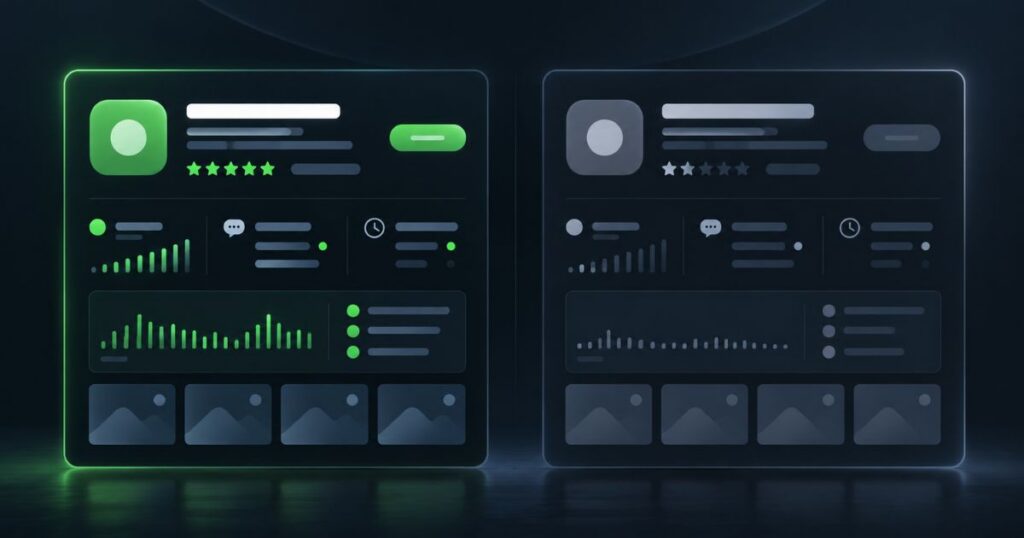
Before installing any WordPress plugin, check five things on its listing page: when it was last updated, whether it is tested with the current version of WordPress, how many active installations it has, whether recent support questions have replies, and who maintains it. Then check two things about your own site: whether another plugin already does this job, and whether your theme does it already. That is the whole check, and it takes about two minutes.

Why plugin choice matters more than plugin count
The advice you have heard is that too many plugins slow a site down and cause problems. That advice is roughly right, and it is right for the wrong reason.
A site running thirty well-built, actively maintained plugins can be perfectly stable and perfectly fast. A site running eight can be a mess, if three of them are unmaintained, two of them do the same job, and one of them loads on every page to power a feature used on one. Count is a rough proxy for something more useful: how much unmaintained, overlapping, or unnecessary code the site is carrying.
This is worth knowing because it changes what you do about it. “Have fewer plugins” is hard to act on. “Do not add a badly maintained one, and do not add a second plugin that duplicates the first” is something you can do on a Tuesday afternoon.
The awkward part is that a bad choice does not feel like anything at the time. The plugin installs, the feature works, and you move on. What it costs you shows up months later, as a conflict after an update or a slow page nobody can explain. Weight and speed are their own subject, covered in our piece on what actually slows a WordPress site down.
The two-minute check before you install
Everything below is on the plugin’s listing page, in the sidebar or under the description. You are not judging the code. You are judging whether somebody is still looking after it.
- Last updated. Within the last few months is healthy. Over a year ago is a question mark, and the older it gets the more it means nobody is watching for problems.
- Tested up to. This tells you which version of WordPress the developer has actually checked their plugin against. If it is several versions behind the current one, the plugin may still work, but nobody has confirmed it.
- Active installations. A large number means problems get found and reported quickly by other people. A very small number is not disqualifying, but it does mean you are closer to being the person who discovers the bug.
- The support forum. Open it and look at the last ten or twenty threads. Are questions being answered, and how recently? This is the single most revealing thing on the page.
- Who maintains it. A company with other plugins and a real website behind it is a different proposition from an anonymous single release. Neither is automatically better, but you should know which one you are choosing.
- The recent reviews, not the average. A four-and-a-half star average built over ten years tells you nothing about this year. Sort by newest and read a handful.
The check we run most often on a client’s behalf is the least technical one on that list. We read the support forum. A plugin whose last twenty support threads sit there without a reply is telling you plainly how the next year is going to go, long before anything breaks.
None of this guarantees a plugin is safe. A well-maintained plugin can still have a vulnerability, and an actively developed one can still conflict with your theme. What the check does is tilt the odds, and it removes the choices that were obviously going to cause trouble.
Free versus paid, and what you are actually buying
Free does not mean worse. Some of the most reliable, most widely used plugins in WordPress are free, and some paid ones are thin. What you are usually buying with a paid plugin is not better code, it is a business model that makes continued maintenance somebody’s job.
That is worth paying for when the plugin is doing something you cannot afford to have quietly stop working: taking payments, handling bookings, capturing enquiries, running a membership. For those, a support channel with an obligation attached to it is the actual product.
Two things to understand before you pay. First, most plugin licences are annual, and letting one lapse usually means updates stop while the plugin keeps running, which is the least visible way to end up on old code. Second, know what happens to the site if you stop paying. If the answer is that the feature disappears, that is fine as long as you decided it knowingly.
Overlap is the conflict nobody sees coming
Two plugins doing the same job is one of the most common and most avoidable causes of trouble. Two caching plugins, two security plugins, two form builders, two things adding schema markup. They are not designed to share, so they compete, and the result is inconsistent behavior that is hard to trace back to a cause.
It happens through ordinary business. The first plugin was not quite right, so somebody installed a second one, got what they needed, and never turned the first one off. Nothing looks wrong for months.
So before installing, read your own plugin list, and be honest about what is already there. If something overlaps, decide which one stays. Deactivating and removing the loser is part of the job, not an optional tidy-up for later.
Check whether your theme already does it
Modern WordPress themes, especially commercial ones and anything built with a page builder, often include features people go looking for plugins to add: sliders, galleries, contact forms, popups, cookie notices, mega menus.
Before you install anything, spend a minute in your theme’s options and its documentation. A feature built into the theme is one less separate thing to keep updated, one less thing that can conflict, and one less thing to migrate if you ever change hosts.
There is a trade-off worth naming. Theme features tie you to the theme, so if you change themes later, those features leave with it. For something central to how you sell, a separate plugin can be the more portable choice. For a slider, it rarely is.
When a plugin is the wrong answer entirely
Sometimes the honest answer is that no plugin fixes this. A few signs you have reached that point:
- You are considering three plugins that will have to work together to produce one feature.
- The plugin exists to work around something the site does badly, rather than to add something new.
- You are adding a performance plugin to compensate for a site that keeps getting heavier.
- The feature is genuinely central to your business, and you are about to run it on something free with no support.
In those cases the need is a build decision rather than an installation, and it is cheaper to recognize that before the plugin than after. That is a good moment to ask for a quote rather than experiment on a live site.
Not sure the plugin is the right answer?
We can tell you whether what you want needs a plugin, a setting, or a proper build, before anything gets installed.
Before you install on a live site
Once you have chosen, a few habits make the installation itself much less eventful.
- Make sure you have a current backup. Not a backup from last month. One from today.
- Install one plugin at a time. If you add four and something breaks, you have four suspects and no evidence.
- Pick a quiet moment. Not the morning of a campaign, and not the day before you leave town.
- Check the pages that matter afterwards. Your homepage, your contact form, your checkout. Actually submit the form.
- Remove it properly if you change your mind. Deactivating leaves it in place. Deleting removes it.
One more thing worth accepting up front: a plugin that passes every check today can still go quiet later, because maintainers move on. That is a normal part of running a WordPress site rather than a sign you chose badly, and it is why what is installed is worth reviewing occasionally rather than once. Keeping what you do install current is its own habit, covered in our guide on how often to update WordPress plugins.
Two minutes now, or an afternoon later
Choosing well is not about expertise. It is about reading five things before you click install, and being willing to walk away from a plugin that nobody has looked after since 2021. The cost of doing that is two minutes. The cost of skipping it is an afternoon, usually on a day you had other plans.
WPSiteOps has been in the WordPress trenches long enough to have seen plenty of things go wrong, and the pattern is consistent: the trouble was chosen, quietly, months earlier. If you would rather have someone keeping an eye on what is installed, what it is doing, and whether it is still maintained, that is what ongoing care is for.
Someone watching what is installed
Updates, compatibility, backups, and a regular look at whether the plugins on your site are still worth their place.
Found this useful? Pass it on.
